
Choose an animated GIF
Open a GIF from your device or drop it into the tool. Files are read locally in your browser; no upload or account is required.
Resize animated GIFs to 2×, 3×, or 4× directly in your browser. Keep the animation, preview the result, and download for free.
Standard GIF resizing No AI processing. No upload. No sign-up.
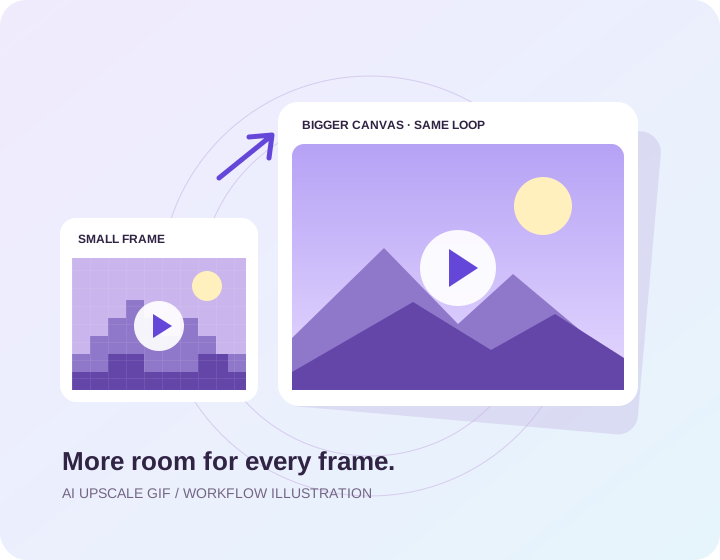
Enlarge every frame with standard resizing. Your GIF stays on your device. This tool does not use AI or generate new detail.
Up to 10 MB · 300 frames · Output up to 1920 px per side
AI Upscale GIF is the site name. This free GIF resizer uses standard image scaling, not an AI super-resolution model. Smooth mode uses bilinear interpolation; pixel-edge mode uses nearest-neighbor scaling. Both enlarge every frame and export an animated GIF.
If you searched for “ai upscale gif,” the difference matters: this tool increases GIF dimensions but does not generate new textures or restore missing detail. Files are processed locally in a background worker, with no server upload or processing credits.
From your original GIF to a larger animation in three steps.
Open a GIF from your device or drop it into the tool. Files are read locally in your browser; no upload or account is required.
Choose smooth resizing for photos and reactions, or pixel edges for pixel art. The tool checks output dimensions and frame count before processing.
Compare the original and resized animations, check the file size, and download your GIF. Cancel processing at any time.
Use these checks when resizing reaction GIFs, animated illustrations, or short product loops.
Use dimensions that fit your chat, presentation, or website. Standard resizing makes existing pixels larger; it cannot restore missing detail.
All image frames are processed. Original frame delays and loop settings are carried into the exported GIF.
The resizer handles transparent pixels and frame disposal. GIF uses binary transparency, so smoothing and palette conversion may change fine edges.
Larger dimensions can increase file size considerably. Review the downloaded result and choose a lower scale when needed.
For reaction GIFs, focus on readable expressions and smooth playback. For animated artwork, compare line work and color consistency. For product demos, inspect interface text at the final display size.
If you have the original video or artwork, start there rather than an already compressed GIF. GIF’s limited palette and low source resolution still limit the quality of a larger version.
Read answers about GIF upscaling →File limits, animation, privacy, and the difference between standard resizing and AI upscaling.
No. AI Upscale GIF is the site name. The current tool uses standard resizing: bilinear interpolation for smooth mode and nearest-neighbor scaling for pixel-edge mode. It increases dimensions without generating new detail.
Choose or drop a GIF into the resizer, select 2×, 3×, or 4× and a resize method, then click Enlarge GIF. Preview the original and resized animations and download the result.
Yes. GIF resizing runs in your browser without sign-up, processing credits, or a watermark added by this tool.
No. The resizer reads and processes your selected GIF locally in a browser worker. Your original GIF and resized output are not sent to a processing server.
Yes. The tool resizes all image frames and carries over the original frame delays and loop settings. Playback of very short frame delays can vary between browsers. Review the complete animation after export.
GIF files up to 10 MB and 300 frames are supported. Input and output dimensions cannot exceed 1920 pixels on either side. Total output is limited to 80 million frame pixels; choose a lower scale or shorter GIF if the limit is exceeded.
Smooth mode blends nearby pixels with bilinear interpolation and suits photos and reactions. Pixel-edge mode uses nearest-neighbor scaling to keep hard pixel boundaries, which is useful for pixel art.
It can make a GIF fit a larger display area, but it cannot recover lost detail. Smooth resizing may look softer; pixel-edge resizing can look blocky. GIF palette conversion can also change colors and edges.
The resizer handles transparent pixels and frame disposal when reconstructing the animation. GIF only supports binary transparency, so review fine edges and the full loop against light and dark backgrounds.
Increasing width and height increases the number of pixels per frame. Frame palettes and re-encoding also affect file size. Use a lower scale if the output is too large for your destination.
Choose your GIF, pick a scale, and download a larger animation. Free, local, and no sign-up.
Resize your GIF →